
7 Best Free Video Editing Software for Beginners (2026)
Let’s be honest: most free video editors will drive you nuts. You download one, wrestle with the interface for an hour, finally get your first video done, and then—bam—a giant watermark across the whole thing. Or suddenly they want cash just to export in 1080p. Or the app crashes when you try to put together anything longer than a TikTok.
This list skips that difficulty. Every editor here is actually free for everyday editing. There’s no watermark on your own clips, no surprise export fees, and no time limit cutting you off mid-project. Real creators use these to post real videos—not just trial versions trying to nudge you toward a subscription.
So, whether you’re starting a YouTube channel, piecing together a TikTok, or making a travel montage just for fun, you’ll find a zero-cost tool here that actually works.
What You Should Expect From a Free Video Editor?
Before we dig in, here’s what sets a real free tool apart from time-wasters:
– No watermark on exports with your footage
– Handles popular video formats like MP4, MOV, AVI
– Runs on your computer—Windows, Mac, or Linux
– Lets you export at least 1080p video for free
– Won’t eat up your entire weekend just to learn the basics
Everything below clears that bar (and a few go way beyond it).
1. DaVinci Resolve — best all-around free editor
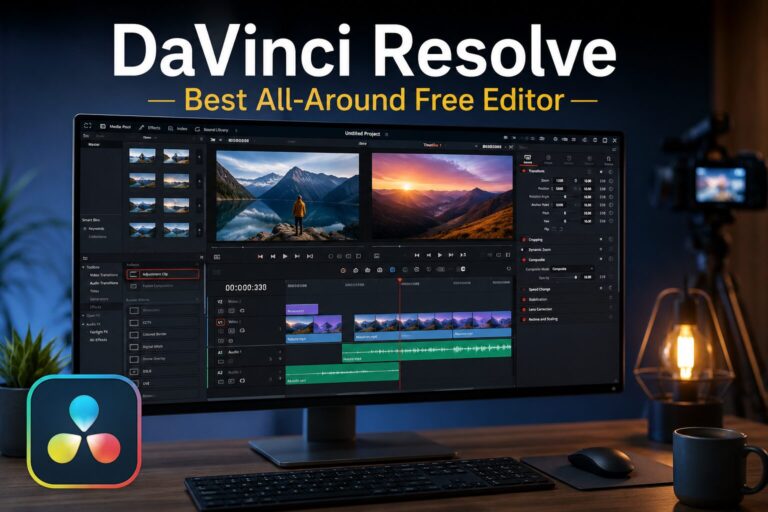
DaVinci Resolve is in a league of its own: all the pro-level tools, zero cost. You get Hollywood-grade color grading, full-featured timeline editing, advanced audio with Fairlight, visual effects—even 4K exports. The free version isn’t watered down; loads of actual professionals use it for years without paying a cent.
The trade-off? There’s a lot to learn. The interface is built for serious editing, and there’s just no way around spending time getting used to it. But if you commit for a week or two, you’ll have a powerful setup that you’ll never outgrow.
Key features:
– Free 4K exports
– High-end color grading and dedicated panel
– Pro-level audio editing with EQ and noise reduction
– No watermark, no export limits, no trial period
Best for: Folks willing to invest up front for a tool they’ll stick with long-term
Platform: Windows, Mac, Linux
Paid upgrade: DaVinci Resolve Studio ($295 one-off) for advanced AI tools and collaboration
2. CapCut Desktop — best for social media videos
CapCut’s everywhere, and for short-form content, it’s the go-to pick. The desktop app is free. Edit your own clips, export at 1080p—no watermark. That’s rare for a free tool. Its interface is simple, the learning curve is gentle, and you get perks like auto-captions, slick templates, and free AI background removal.
A heads up: a watermark only shows up if you use a locked Pro template or export AI content that’s not on the free tier. Otherwise, what you see is what you get. Most features—auto-captions (up to 10 min), auto-editing, and a whole suite of templates—are ready to go at no cost.
If you’re offline a lot, know that some AI features only run with a web connection.
Key features:
– No watermark for your own edits
– Auto-captions with good accuracy
– AI background removal built in
– Works on desktop, phone, and browser seamlessly
Best for: Beginner social media creators on TikTok, Instagram, YouTube Shorts
Platform: Windows, Mac, iOS, Android, web
Paid upgrade: CapCut Pro ($19.99/month) for 4K exports and the full suite of AI features
3. Kdenlive — best for Windows and Linux
Kdenlive is old school in the best way—totally open-source and fully unlocked. There’s no upsell, no restrictions, and no watermark, ever. You get a robust multi-track timeline, keyframe animation for effects, titling tools, color correction, and support for just about any video format out there.
Sure, the look is dated, but it’s all logical and straightforward once you find your bearings. Kdenlive shines with longer projects—vlogs, full YouTube uploads, or class assignments—especially on older machines that struggle running newer editors.
Key features:
– 100% free, fully open
– Multi-track timeline with animation options
– Broad file format support, even pro types like ProRes or HEVC
– Helpful docs and active community
Best for: Beginners on Windows or Linux who want a solid, no-strings-attached editor
Platform: Windows, Mac, Linux
Paid upgrade: None—Kdenlive is always free
4. iMovie — best starter for Mac and iPhone
If you’re on Mac or iPhone, iMovie’s already installed, and it’s honestly the friendliest you’ll find. It’s simple and smooth—even if you’ve never edited a second of video. The timeline is stripped down, which means you can start from zero and have a finished 4K upload by dinner.
You get basic color adjustments, seamless workflow between phone and Mac, and easy sharing to YouTube or AirDrop. Of course, the limits show fast—no multi-track audio, no fancy effects, just the basics. But if you want a painless place to begin, this is it.
Key features:
– Built-in and free on Mac/iPhone
– Simple interface, zero experience required
– 4K exports without fuss
– Projects transfer easily between Apple devices
Best for: Absolute beginners on Mac, ready to share a video today
Platform: Mac, iPhone, iPad
Paid upgrade: Final Cut Pro ($299) for next-level features
5. Clipchamp — best for Windows 11
If you’re on Windows 11, Clipchamp’s already installed. Just search for it from the Start menu, open it, and get right to editing. The interface is clean and easy for first-timers. Clipchamp covers the basics—cutting, transitions, text, voiceovers, all export-ready with no watermark.
It’s best for short clips (under about 15 minutes); after that, it can lag on weaker hardware. The template library’s good for quick social posts, and the text-to-speech tool is handy if you hate recording your own audio. Free version exports at 1080p, which works for most needs.
Key features:
– No setup—open and edit instantly on Windows 11
– Beginner-friendly drag-and-drop timeline
– Record voiceover and use text-to-speech for free
– No watermark on your exports
Best for: Windows 11 users who want to start right away
Platform: Windows (built-in), also web
Paid upgrade: Clipchamp Premium ($13/month) for 4K export, more stock content
6. OpenShot — easiest for brand-new users
OpenShot is the simplest standalone editor in this round-up. Hardly any buttons, zero clutter—perfect if you just want to slice up a home video or quick reel and be done. It handles cut, trim, music, and basic titles without getting in your way.
There’s not much here for advanced tweaks, and performance dips on big, high-res projects. But for dead-simple jobs, OpenShot gets you a finished video in an hour, not a headache.
Key features:
– Super simple, approachable interface
– Open-source and restriction-free
– Handles most file formats
– Unlimited tracks, no export limits
Best for: Beginners who want the absolute easiest tool for simple jobs
Platform: Windows, Mac, Linux
Paid upgrade: None—OpenShot is always free
7. VN Video Editor — best for mobile editing
On your phone? VN (Video Nerd) sets the bar. It’s free, has no watermark, and supports a full timeline with keyframes, motion, and 4K exports. You can use the desktop version, but the app really shines on iOS or Android.
Where most mobile apps slap watermarks on your clips—or limit you after a few tries—VN gives you pro tools for free. It’s more detailed than CapCut if you want hands-on editing instead of templates. For real editing on your phone, this is it.
Key features:
– No watermarks ever
– Keyframe animation and multi-track timeline
– 4K exports with the free version
– Designed for precise editing on mobile
Best for: Creators who edit on their phone and want clean exports
Platform: iOS, Android (desktop version is limited)
Paid upgrade: VN Pro (removes ads, adds effects)
Lorem ipsum dolor sit amet, consectetur adipiscing elit. Ut elit tellus, luctus nec ullamcorper mattis, pulvinar dapibus leo.
Free vs Paid Editors—When Should You Level Up?
For most people, free editors are all you need for years. Whether you’re cutting basic clips or getting into pro color grading, you’re covered. But once you hit a wall—like needing more advanced motion graphics or custom animation—paid software starts making sense.
Adobe Premiere Pro ($22.99/month) is the pro’s choice, especially if you’re working for clients. Final Cut Pro ($299, one-time) is the upgrade path for Mac users who want speed and more power than iMovie. Filmora ($49.99/year) is a sweet spot for those who want more features than the free editors, but don’t want the complexity of Premiere.
If you find yourself wasting time on workarounds—rendering just to use another effect or re-encoding for compatibility—it’s probably time to move up. Until then, stick with the free options.
Tips for Getting Started With a Free Editor
– Stick with one tool for a month. Bouncing between editors just kills momentum.
– Learn your shortcuts early. It’s the fastest way to get quicker—whatever tool you pick.
– Export everything in H.264 (MP4). Your files will work everywhere, and uploads won’t choke.
– Save and back up your project files. Most free editors aren’t great with auto-save—don’t risk losing your afternoon.
– Look for YouTube tutorials for your specific editor. Searching “DaVinci Resolve beginner tutorial 2026” beats generic advice every time.
FAQ
Is DaVinci Resolve really free?**
Yep, 100%. You get a full Pro Suite, including color grading, Fairlight audio, and 4K export. There’s no watermark and no expiration. There’s a $295 paid version with team features and Hollywood-level AI effects, but honestly, almost everyone sticks with the free release.
Which free video editors don’t watermark your exports?**
DaVinci Resolve, Kdenlive, iMovie, OpenShot, and VN Video Editor are always clean. CapCut is too—just avoid Pro-locked templates. Clipchamp exports watermark-free at 1080p.
Can I edit 4K video for free?**
Definitely. DaVinci Resolve, Kdenlive, iMovie, and VN Video Editor handle 4K exports for free. CapCut and Clipchamp only allow 1080p unless you pay, but most platforms compress video anyway, so that’s fine for social.
What’s the easiest editor for beginners?**
iMovie on Mac or iPhone and Clipchamp on Windows—both are dead simple and already on your device. If you want something even simpler and cross-platform, OpenShot is a strong pick for basic stuff.
Is CapCut free on desktop?**
Yes. Edit your own footage and get a clean 1080p export with no watermark. The only paid features are 4K export and some advanced AI tools.
What free editors do YouTubers use?**
Most serious creators use DaVinci Resolve for long-form videos. CapCut is all over short-form and Shorts. Beginners on Mac tend to use iMovie. Career creators eventually move to Premiere Pro or Final Cut Pro, but DaVinci Resolve’s free features are more than enough for a pro channel.
Wrapping Up
Not sure where to start? Match your device to the easiest pick: use iMovie on Mac, Clipchamp on Windows 11, or VN Video Editor on your phone. If you care about getting good at editing—and want the same tool professionals use—make the jump to DaVinci Resolve and give yourself time to learn it.
You don’t need to spend a dime until you’re pushing up against real limitations. When you’ve got 20-30 videos published and find yourself annoyed at missing features, that’s when it’s time to upgrade. Until then, what’s here is more than enough—and completely free.
Ready to go deeper? Check out:
– Best Paid Video Editing Software in 2026
– Filmora Review: Is It Worth Paying For?
– Adobe Premiere Pro vs Final Cut Pro: Which Is Better?